
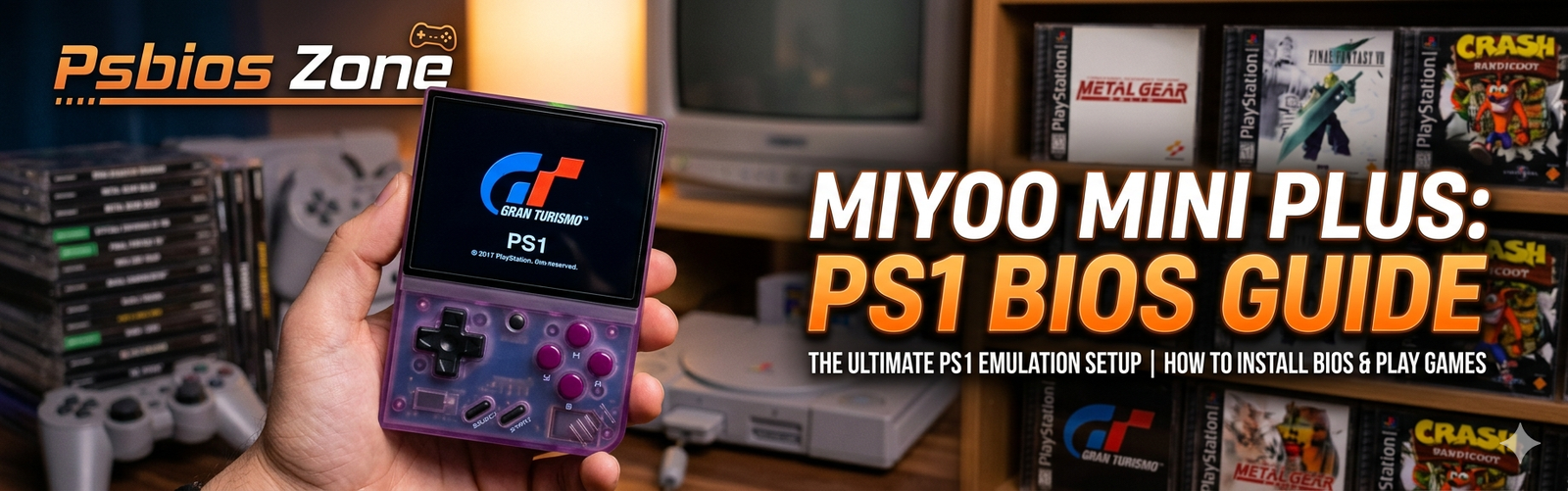
The Miyoo Mini Plus has solidified its place as the gold standard for ultra-portable retro gaming. While its screen is vibrant and its buttons are tactile, the real magic happens when you dive into the 32-bit era of the Sony PlayStation. However, many users hit a wall when their favorite classics fail to boot or run with glitchy audio. The solution is almost always the same: a proper Miyoo Mini Plus PS1 BIOS configuration.
At Psbios Zone, we believe that setting up your handheld shouldn’t feel like a chore. This guide will walk you through everything you need to know to get your PlayStation library running flawlessly.
Why You Need a PS1 BIOS for Miyoo Mini Plus
A BIOS (Basic Input/Output System) is essentially the “soul” of the original console. While some emulators use “High-Level Emulation” (HLE) to simulate the BIOS, it is notoriously inaccurate. To achieve 100% compatibility, faster loading times, and the iconic Sony startup splash screen, you must provide the emulator with original BIOS files.
Without the correct Miyoo Mini Plus PS1 BIOS, you may experience:
- Games failing to launch (returning to the menu).
- In-game save issues (memory card errors).
- Significant performance drops in demanding titles like Tekken 3 or Gran Turismo.
Required BIOS Files and Naming Conventions
The Miyoo Mini Plus, especially when running OnionOS, is very picky about file names. The files are case-sensitive. Here are the primary files recommended by Psbios Zone for the best experience:
| Region | Recommended File Name | Purpose |
| Universal | PSXONPSP660.bin | The “Gold Standard” – extracted from the PSP, offers the best compatibility across all regions. |
| North America | scph5501.bin | Essential for NTSC-U titles. |
| Europe | scph5502.bin | Required for PAL titles. |
| Japan | scph5500.bin | Required for NTSC-J titles. |
Pro Tip: If you only want to use one file, Psbios Zone highly recommends
PSXONPSP660.bin. It is a lightweight, optimized version that works for nearly every game in existence.
Step-by-Step: How to Install PS1 BIOS on Miyoo Mini Plus
Follow these steps to ensure your device recognizes the files correctly.
1. Prepare Your SD Card
If you are still using the stock SD card that came with your device, stop! Those cards are prone to corruption. Upgrade to a branded card (Samsung or SanDisk) and ensure it is formatted to FAT32.
2. Locate the BIOS Folder
Connect your SD card to your PC. Depending on your operating system, the path will vary:
- OnionOS: Look for the folder named
BIOSat the root of your SD card. - Stock OS: Look for the folder named
systeminside theRetroArchdirectory.
3. Transfer the Files
Copy your .bin files directly into the BIOS folder. Do not put them in a subfolder. Ensure the names are all lowercase (e.g., scph5501.bin, not SCPH5501.BIN).
4. Refresh Your Device
Safely eject the SD card and insert it into your Miyoo Mini Plus.
- Power on the device.
- If using OnionOS, press Menu on the home screen, go to Apps, then Tweaks.
- Navigate to Tools and select Check BIOS to ensure the system detects your PlayStation files.
Optimizing PlayStation Performance
Once your Miyoo Mini Plus PS1 BIOS is active, you can squeeze even more power out of the device. The default emulator for PS1 on the Miyoo is PCSX-ReARMed.
Enabling Enhanced Resolution
If you want your 3D games to look crisp:
- Open a PS1 game.
- Press Menu + Select to open the RetroArch Quick Menu.
- Navigate to Options.
- Find Video and toggle Enhanced Resolution (Slow) to ON.
- Note: This may require overclocking for stable frame rates.
Managing Multi-Disc Games
To avoid a messy library, Psbios Zone recommends using .m3u files for multi-disc games like Final Fantasy VII. This allows you to switch discs via the RetroArch menu without having four separate entries for a single game.
Common Troubleshooting
“I added the BIOS, but it still says ‘BIOS not found’!”
Check your file extension. Sometimes Windows hides file extensions, resulting in a file named scph5501.bin.bin. Also, verify the MD5 checksum of your file to ensure it isn’t a corrupted dump.
“The game runs, but it’s slow.”
Ensure you aren’t using “Rewind” mode, as it consumes significant CPU power. Also, check that your ROMs are in .chd or .pbp format; these compressed formats run much better on the Miyoo Mini Plus hardware than bulky .bin/.cue files.
Final Thoughts from Psbios Zone
Setting up your Miyoo Mini Plus PS1 BIOS is the single most important step in turning a good handheld into a great one. By following the naming conventions and folder structures outlined above, you unlock a library of thousands of legendary titles.
For more BIOS guides and retro gaming tips, keep exploring Psbios Zone—your home for peak emulation performance.