
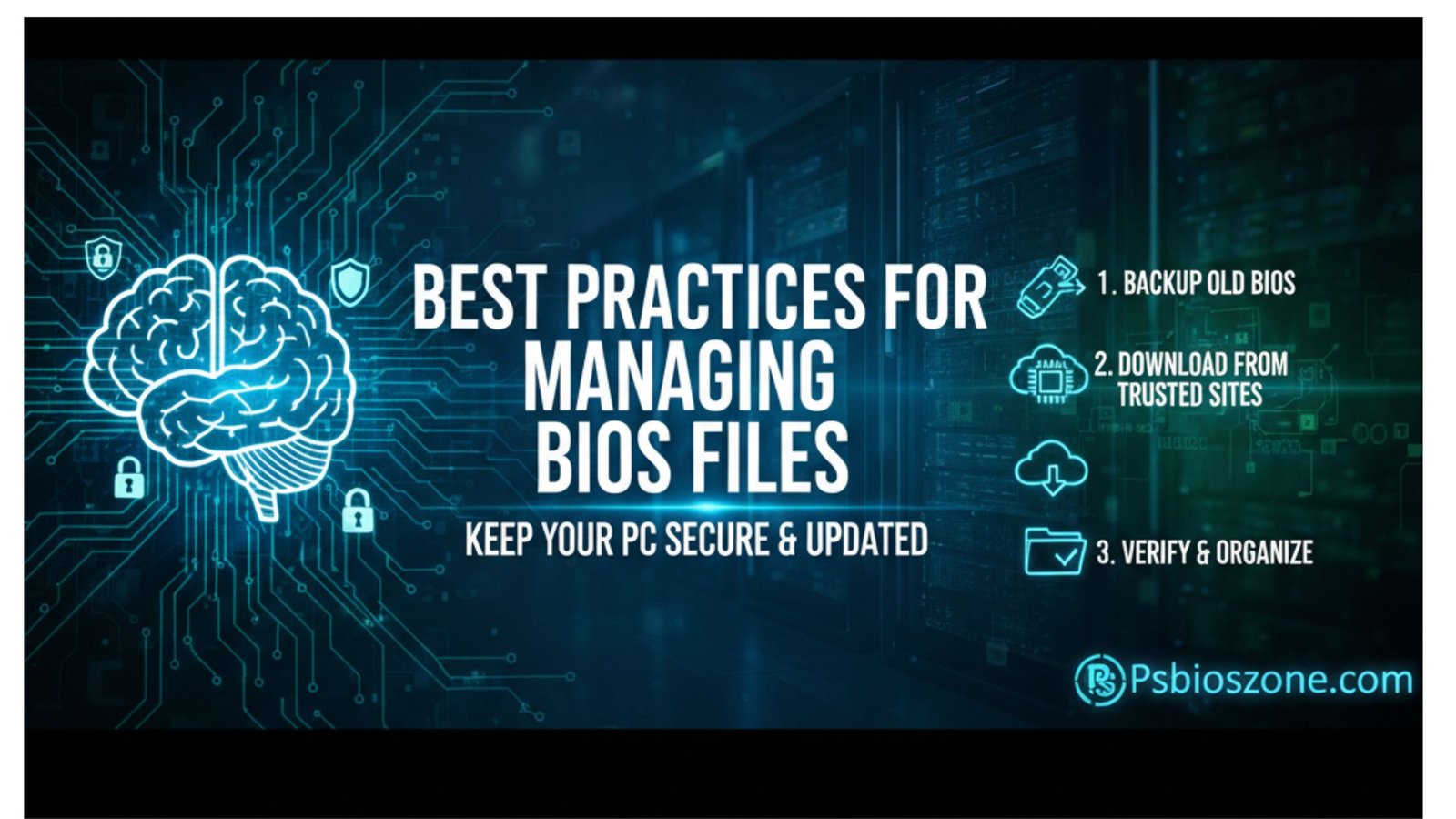
The BIOS (Basic Input/Output System) is one of the most essential components of any computer, responsible for initializing hardware and ensuring smooth communication between your system’s components. Proper management of PS BIOS files is crucial — not only for maintaining system stability but also for preventing serious issues like boot failures or data loss. Below are the best practices for safely managing BIOS files on your PC.
1. Download BIOS Files Only from Official Sources
When updating or replacing your BIOS, always download files directly from your motherboard manufacturer’s official website.
- Why it matters: Third-party BIOS files may contain malware or incorrect firmware, leading to permanent system damage.
- Tip: Always double-check your motherboard model and version before downloading the BIOS update file.
2. Verify the BIOS Version Before Updating
Before flashing or updating the BIOS, check your current version.
- How: You can find this in the BIOS setup menu or by typing msinfo32 in Windows Run.
- Best practice: Only update if the new version fixes a specific issue or adds necessary hardware support — unnecessary updates can introduce new bugs.
3. Back Up the Current BIOS
Always create a backup of your existing BIOS before performing an update.
- Many modern motherboards include tools like Q-Flash, EZ Flash, or BIOS Flashback for easy backup and restore.
- Why it’s important: If the update fails or causes instability, you can easily revert to the working version.
4. Use a Reliable Power Source During Updates
A BIOS update should never be interrupted.
- Recommendation: Plug your PC into a UPS (Uninterruptible Power Supply) to prevent power loss during the flashing process.
- Consequence of interruption: An incomplete BIOS update can make your PC unbootable.
5. Avoid Renaming or Moving BIOS Files Unnecessarily
BIOS files often have specific naming conventions recognized by your motherboard’s firmware utility.
- Tip: Keep BIOS files in their original names and locations during the update process.
- Renaming or moving them might cause the update utility to fail to detect the file.
6. Check File Integrity with Checksums
Most manufacturers provide MD5 or SHA checksums for BIOS files.
- Use tools like HashMyFiles or 7-Zip to verify file integrity.
- This ensures your BIOS file isn’t corrupted or tampered with during download.
7. Understand the Risks Before Flashing
Flashing the BIOS isn’t something to do casually.
- Always read the manufacturer’s release notes and ensure compatibility with your system’s CPU and chipset.
- If you’re unsure, contact support or check reliable guides before proceeding.
8. Keep a USB Drive Dedicated for BIOS Tasks
Maintain a clean, formatted FAT32 USB drive specifically for BIOS backups and updates.
- Avoid storing unrelated files on it to prevent confusion.
- This simple organization habit helps ensure your BIOS management process is smooth and error-free.
Final Thoughts
Managing BIOS files requires care, attention, and a solid understanding of your hardware. Whether you’re updating, backing up, or restoring, always use official sources and double-check every step to avoid system issues.
For additional guidance and in-depth tutorials on BIOS management — especially for emulation systems and configuration — visit Ps2 bios. It’s a great resource for learning more about BIOS operations, updates, and safe handling practices for both PC and emulator environments.