
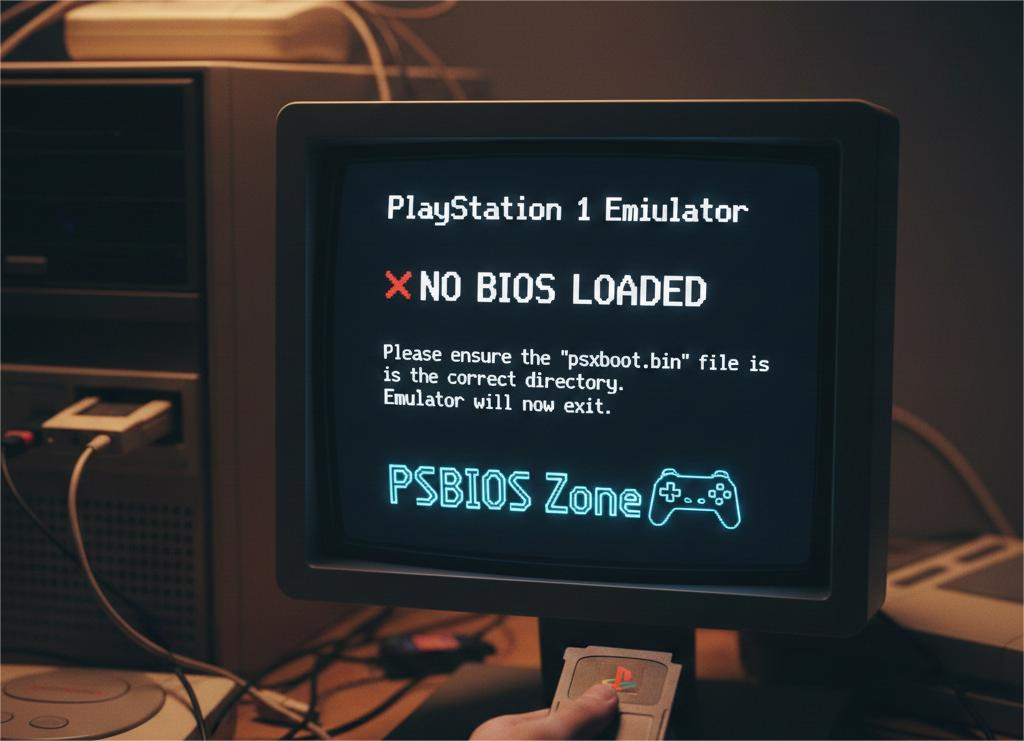
If you are trying to play classic PlayStation 1 games on an emulator and suddenly encounter the frustrating message “No BIOS Loaded”, you are not alone. This is one of the most common issues faced by PS1 emulator users — and thankfully, it’s also one of the easiest to fix.
In this guide, you will learn exactly what the PS1 BIOS is, why the error occurs, and the step-by-step solution to fix it using the correct BIOS files from PSBIOS Zone.
What Is a PS1 BIOS?
The PS1 BIOS is the core system software of the original PlayStation console. It allows the emulator to behave like real hardware by controlling essential functions such as:
- Game booting
- Memory card access
- Save management
- Region detection
- Disc reading
Because of copyright restrictions, most emulators do not include BIOS files. This means you must provide them yourself in order for games to work properly.
Why Does the “No BIOS Loaded” Error Appear?
The error usually occurs due to one or more of the following reasons:
1. No BIOS Installed
The emulator simply cannot find any valid BIOS file.
2. Incorrect BIOS Directory
The BIOS file exists, but the emulator is looking in the wrong folder.
3. Wrong BIOS File Name
Most emulators require specific file names like:
- SCPH1001.BIN (USA)
- SCPH5501.BIN (Europe/Japan)
4. Corrupted or Incompatible BIOS
If the BIOS file is incomplete or damaged, the emulator will refuse to load it.
Easy Steps to Fix the “No BIOS Loaded” Error in PS1 Emulators
Follow these steps carefully and your emulator will be running smoothly.
Step 1: Download the Correct PS1 BIOS Files
The first thing you need is a full set of compatible BIOS files.
You can download them safely from PSBIOS Zone here:
🔗 Download PS1 BIOS:
https://psbioszone.com/download-ps1-bios/
This page provides verified PS1 BIOS files that work with all major emulators including RetroArch, DuckStation, ePSXe, and PCSX.
Step 2: Extract the BIOS Files
After downloading, extract the files using WinRAR or 7-Zip.
You should see several .BIN files such as:
- SCPH1001.BIN
- SCPH5500.BIN
- SCPH5501.BIN
- SCPH5502.BIN
Step 3: Place BIOS in the Correct Folder
Now place the BIOS files into your emulator’s BIOS directory.
For RetroArch
- Open RetroArch
- Go to Settings → Directory → System/BIOS
- Copy the BIOS files into that folder
- Restart RetroArch
For DuckStation
- Open DuckStation
- Go to Settings → BIOS
- Set the BIOS folder path
- Apply settings and restart
Step 4: Confirm BIOS Is Detected
After restarting, load a game.
If the BIOS is detected correctly, the error message will disappear and the PlayStation boot screen may appear before the game loads — this confirms everything is working properly.
Why You Should Use a Real BIOS (Not HLE)
Many emulators offer a fake BIOS option called HLE (High Level Emulation), but it comes with problems:
- Game crashes
- Broken saves
- Poor compatibility
- Missing features
Using a real BIOS from PSBIOS Zone gives you:
- Maximum compatibility
- Stable performance
- Accurate PlayStation experience
Conclusion
The “PS1 Emulator No BIOS Loaded” error is easy to fix once you understand what causes it. By downloading the correct BIOS files from PSBIOS Zone and placing them in the proper folder, your emulator will function exactly like a real PlayStation console.
🎮 Start playing your favorite PS1 classics today with zero errors and full compatibility!
Frequently Asked Questions (FAQs)
1. What does “No BIOS Loaded” mean in a PS1 emulator?
It means your emulator cannot find the PlayStation BIOS file, which is required to run games correctly. Without it, most PS1 games will not start or will have serious issues.
2. Where can I download the PS1 BIOS safely?
You can download the complete and compatible PS1 BIOS files from PSBIOS Zone here:
https://psbioszone.com/download-ps1-bios/
3. Which PS1 BIOS file is the best?
The most commonly recommended BIOS file is SCPH1001.BIN (USA version). However, keeping all versions (USA, Europe, Japan) improves compatibility with different games.
4. Can I run PS1 games without a BIOS file?
Some emulators offer HLE BIOS, but it has limited compatibility and causes crashes, missing features, and broken saves. A real BIOS file provides the best experience.
5. Where should I place the PS1 BIOS files?
You should place the BIOS files in the emulator’s BIOS/System directory and ensure the emulator is configured to look in that location.
6. Why is my emulator still showing the error after adding BIOS?
This usually happens because the BIOS file name is incorrect, the file is in the wrong folder, or the emulator settings are not pointing to the correct BIOS directory.
7. Does the BIOS affect game performance?
Yes. A real BIOS improves game compatibility, stability, loading speed, and overall emulation accuracy.