PS1 BIOS Download for DuckStation, RetroArch & ePSXe Emulators
Download the PS1 BIOS files needed to run PlayStation 1 games smoothly on top emulators like DuckStation, RetroArch, and ePSXe. Enhance compatibility, speed, and authentic gameplay with the right BIOS setup.
If you’re a fan of retro gaming and want to relive the nostalgia of classic PlayStation 1 games, setting up an emulator with the right BIOS is essential. This guide will help you download and install the PS1 BIOS files for top emulators like DuckStation, RetroArch, and ePSXe—available for Android, iOS, and Windows platforms.
From understanding what the PS1 BIOS is to learning how to properly configure it on your chosen emulator, this guide covers everything you need to get started.
What Is the PS1 BIOS?
The PlayStation 1 BIOS (Basic Input/Output System) is the built-in software that allows the PS1 console to boot and load games. In emulation, BIOS files replicate this functionality, making it possible to play PS1 games smoothly on your device. It manages important processes like:
Booting the system
Reading game discs
Verifying game regions
Handling save/load operations
Without a valid BIOS, emulators like DuckStation, RetroArch, or ePSXe can’t operate like the original console—leading to compatibility issues or errors.
Why Do You Need a PS1 BIOS for Emulation?
Emulating a console isn’t just about running the game file; it’s about replicating the experience. Here’s why a PS1 BIOS is necessary:
Authentic Gameplay
Mimics original PS1 performance, ensuring accurate visuals and controls.
Save/Load Functionality
Enables use of memory card features.
Game Verification
Some PlayStation titles won’t even start without the BIOS, as it’s required to verify and authenticate the game files.
Bug Fixes
Running an emulator without the proper BIOS can lead to crashes or bugs. The BIOS adds an important layer of stability, helping games run more reliably and smoothly.
PS1 BIOS Types by Region
To get the best compatibility, choose the correct BIOS file based on the region of your game:
SCPH1001.BIN – USA
This is the most commonly used BIOS for North American PlayStation games. It offers excellent compatibility and is often recommended for emulators like DuckStation, RetroArch, and ePSXe when playing NTSC-U titles.
SCPH7502.BIN – PAL
Ideal for PAL-region games, especially those released in the UK and other parts of Europe. It supports 50Hz gameplay, which is standard for PAL titles, and is best used when emulating European discs.
SCPH5500.BIN – NTS
Designed for Japanese games, this BIOS ensures compatibility with NTSC-J formatted titles. It’s essential if you’re running imports or games developed specifically for the Japanese market.
SCPH7003.BIN – Global
This BIOS is known for its wide compatibility across multiple regions. It works well with a variety of titles from different parts of the world, making it a flexible option if you’re running a diverse game library.
Additional BIOS files
SCPH-1000 [NTSC-J]
SCPH-1002 [PAL]
SCPH-3000 [NTSC-J]
SCPH-3500 [NTSC-J]
SCPH-5000 [NTSC-U/C]
SCPH-5501 [NTSC-U/C]
SCPH-7002 [PAL]
SCPH-7501 [NTSC]
SCPH-9002 [PAL]
SCPH-100 [NTSC-J]
SCPH-101 [NTSC-U/C]
SCPH-5502 [PAL]
SCPH-5552 [PAL]
SCPH-7000 [NTSC-J]
SCPH-7001 [NTSC-U/C]
SCPH-102A [PAL]
SCPH-102B [PAL]
Key Features of PS1 BIOS for Emulators
The PS1 BIOS isn’t just a connector between hardware and software—it brings essential features that greatly improve the emulation experience. Here are some of the most important ones:
PS1 Startup Sequence
Authentic Boot Animation The PS1 BIOS delivers the classic PlayStation startup screen, complete with the original Sony logo and the unforgettable boot sound. This adds a nostalgic touch, making it feel like you’re using a real PS1 console.
Game Compatibility
Supports Nearly All PS1 Games A proper BIOS file ensures high compatibility with PS1 titles. With the right region-specific BIOS files, most emulators can achieve up to 99% game compatibility, allowing you to run almost any PlayStation 1 game without problems.
Save Data Management
Built-In Memory Card Features The BIOS manages virtual memory card functions, enabling you to save and load games easily within your emulator. It simplifies how you handle game progress compared to physical PS1 hardware.
Region Support
Play Games from Any Region BIOS files help bypass region locks, so you can enjoy games from different areas like NTSC (U.S.), PAL (Europe), and NTSC-J (Japan) without any compatibility issues.
Disc Management
Game Disc Handling Like a Real Console Just like an original PS1 system, the BIOS supports disc reading and game launching—even when using digital ROM files. This provides a more complete and authentic emulation experience.
Firmware Accuracy
Emulates the Real PS1 Firmware BIOS files help reproduce the actual firmware environment of the PlayStation 1. This improves emulator performance and delivers a more accurate, console-like feel during gameplay.
Improved Game Performance
Better Speed and Fewer Errors Using a BIOS can boost your emulator’s performance by solving common problems like lag, screen glitches, or crashes. This leads to smoother and more stable gameplay.
Where to Download PS1 BIOS Safely
You can securely download the All-in-One PS1 BIOS Pack from psbioszone.com. All BIOS files are verified, virus-free, and compatible with major emulators.
Why choose psbioszone.com?
✅ Safe & virus-free downloads ✅ All regional BIOS files included ✅ Step-by-step installation guides ✅ Trusted by the emulation community
Supported PS1 Emulators for Android, iOS and Windows
The BIOS files provided by psbios.com work seamlessly with the following emulators:
ePSXe (PC & Android)
High compatibility with most PS1 titles
Features cheat support, save states, controller mapping
RetroArch (Android, iOS, PC)
Multi-system emulator using the Beetle PSX core
Advanced customization, shader support, and firmware accuracy
DuckStation (PC & Android)
Lightweight yet powerful PS1 emulator
Supports enhanced graphics, PGXP geometry correction, and widescreen hacks
Installation Guide How to Setup & Install PS1 BIOS on Emulators
ePSXe Setup (Android & PC)
On Android:
1. Download the BIOS pack and extract using ZArchiver.
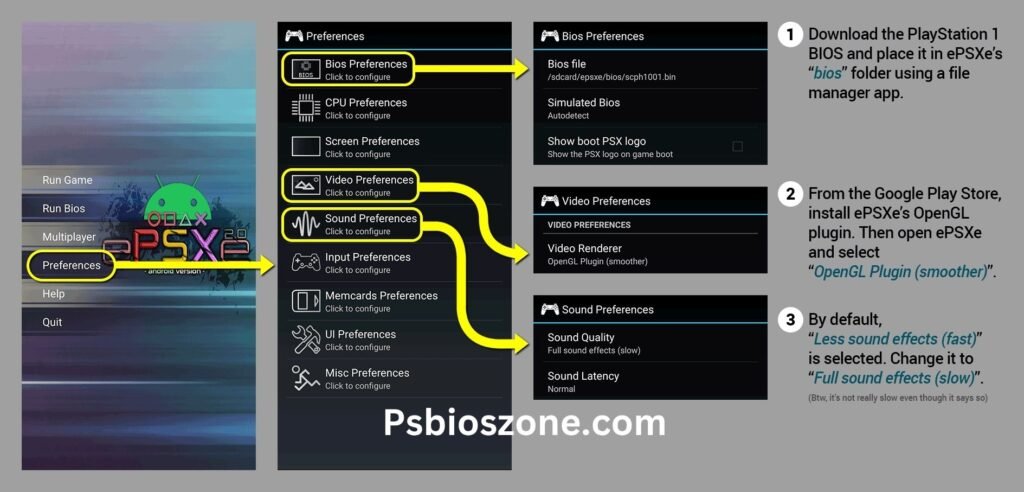
2. Install ePSXe from Google Play Store.
3. Launch ePSXe > Go to Preferences > BIOS File > Select extracted BIOS file.
4. Go back to the home screen > Tap Run Game to play.
On PC:
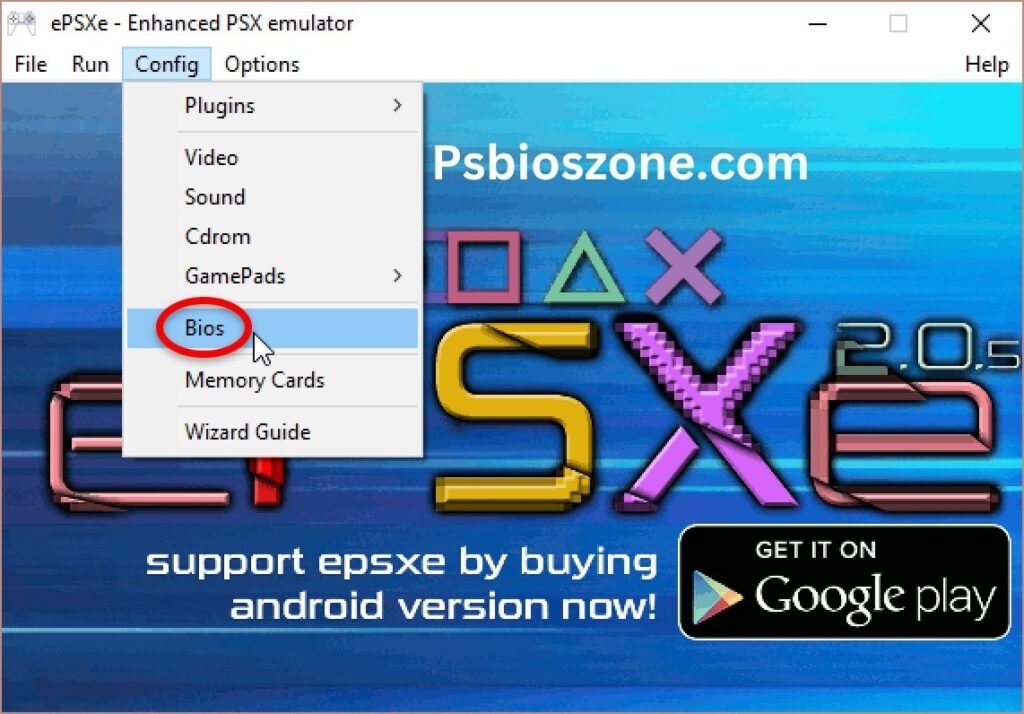
1. Download ePSXe from the official site.
2. Open the emulator > Config > BIOS > Load the BIOS file from your PC.
3. Click File > Run ISO to play your game.
How to Set Up PS1 BIOS on RetroArch for Android & iOS, PC
Follow this simple guide to configure the PS1 BIOS on RetroArch for your mobile device:
Step-by-Step for Android & iOS
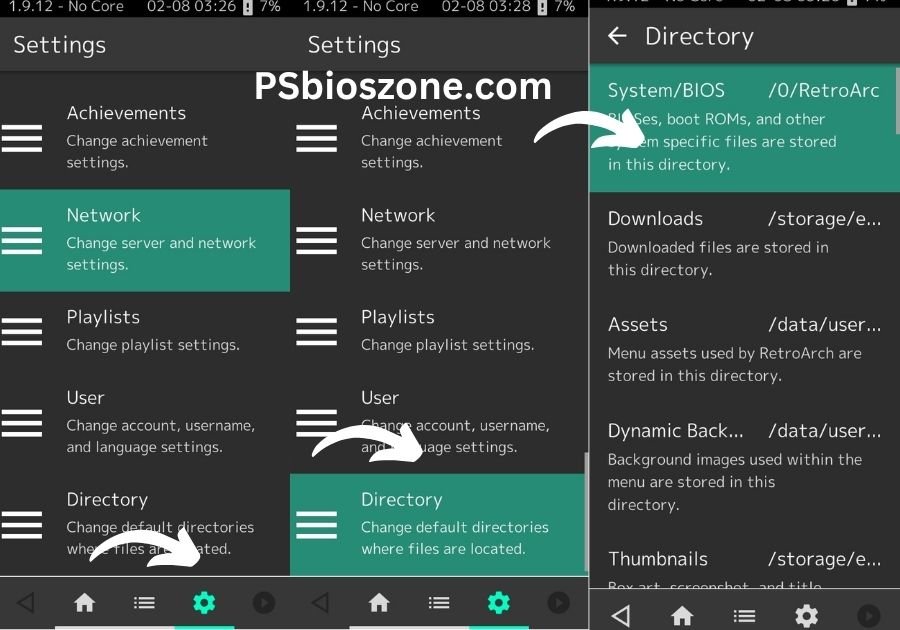
1. Install RetroArch Begin by downloading RetroArch from the Google Play Store (Android) or the App Store (iOS). 2. Get the BIOS Files Visit the download section on our website and grab the All-In-One PS1 BIOS Pack. 3. Launch RetroArch Open the app and navigate to: Settings > Directory > System/BIOS
4. Set the BIOS Directory Assign the System/BIOS path to the folder in your phone’s internal storage where you placed the BIOS files. 5. Load the PS1 Core Go to the main menu and select Load Core, then choose: Sony – PlayStation (Beetle PSX HW)
If the core isn’t already installed, use Online Updater to download it.
6. Load the BIOS File RetroArch will automatically detect the BIOS in the directory you set. If it doesn’t, double-check the folder path and restart the app. 7. Start Gaming Select Load Content, find your PS1 ROM (ISO or BIN), and launch the game—you’re ready to play!
How to Install PS1 BIOS on RetroArch for PC
Setting up the BIOS on your PC version of RetroArch is just as easy. Here’s how to do it:
Installation Steps for Windows/Mac/Linux
Download RetroArch Head over to RetroArch’s official website and download the correct version for your operating system.
Download BIOS Pack Get the All-In-One PS1 BIOS Pack from our site’s download page.
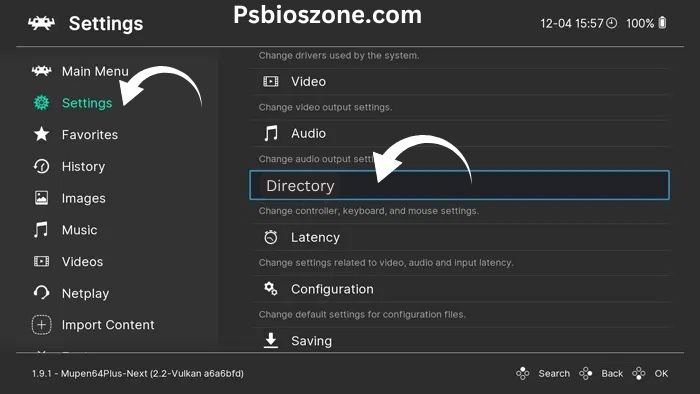
Assign BIOS Directory Open RetroArch and go to: Settings > Directory > System/BIOS Directory Set this to the folder where your BIOS files are stored on your PC.
4. Install the PS1 Core Navigate to Load Core, and select Sony – PlayStation (Beetle PSX HW). If it’s not already installed, go to Online Updater and get it from there. 5. Load the BIOS Automatically Restart RetroArch. It should now auto-detect the BIOS file stored in your configured directory. 6. Launch Games Click Load Content, browse for your PS1 game (ISO/BIN), and start enjoying classic PlayStation titles on your PC with full BIOS support.
Install PS1 BIOS on DuckStation (Android & PC Guide)
DuckStation is a powerful and modern PlayStation 1 emulator that’s easy to set up. Whether you’re gaming on Android or PC, adding the BIOS file takes just a few simple steps.
Setting Up: PS1 BIOS on DuckStation for Android
Follow the instructions below to install the BIOS on your Android device:
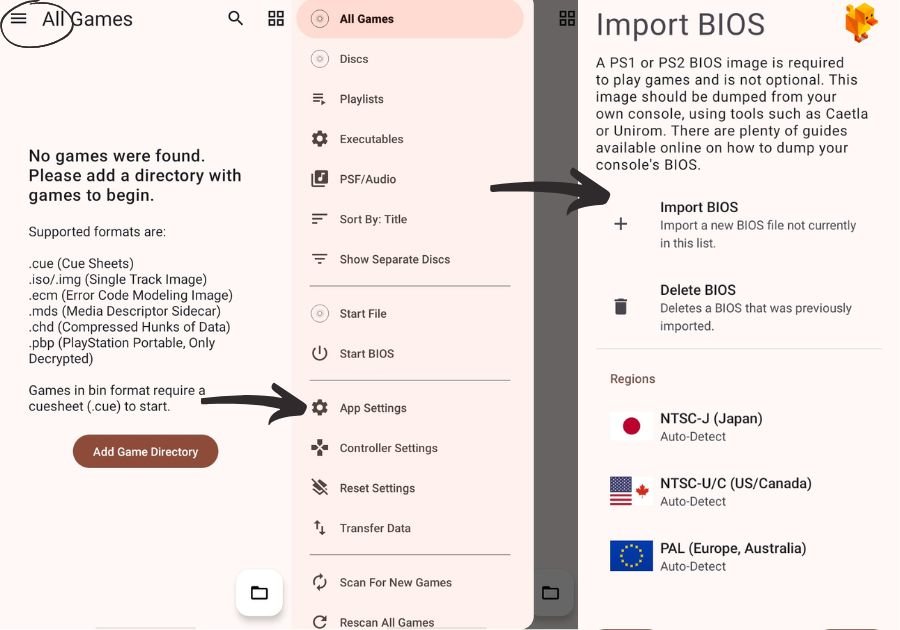
1. Download DuckStation Head over to the Google Play Store and install the latest version of DuckStation Emulator. 2. Get the PS1 BIOS File Visit our site and download the All-In-One PS1 BIOS Pack using the secure link provided. 3. Extract the BIOS File Use a file extractor app like ZArchiver to unzip the BIOS package. Save the extracted files to your device’s internal storage. 4. Launch DuckStation Open the emulator, then go to: Settings > App Settings > BIOS > Import BIOS
5. Select BIOS Folder Navigate to the folder where your BIOS files are stored and tap Use This Folder to import them into the emulator.
Installing PS1 BIOS on DuckStation Go to: Settings > App Settings > BIOS > Import BIOS
6. Start Playing Tap the “+” (Plus) icon on the home screen to add your PS1 game file (ISO format). Once the game loads, tap to begin playing—simple as that!
Adding PS1 BIOS on DuckStation for PC
Setting up BIOS on the PC version of DuckStation is just as straightforward:
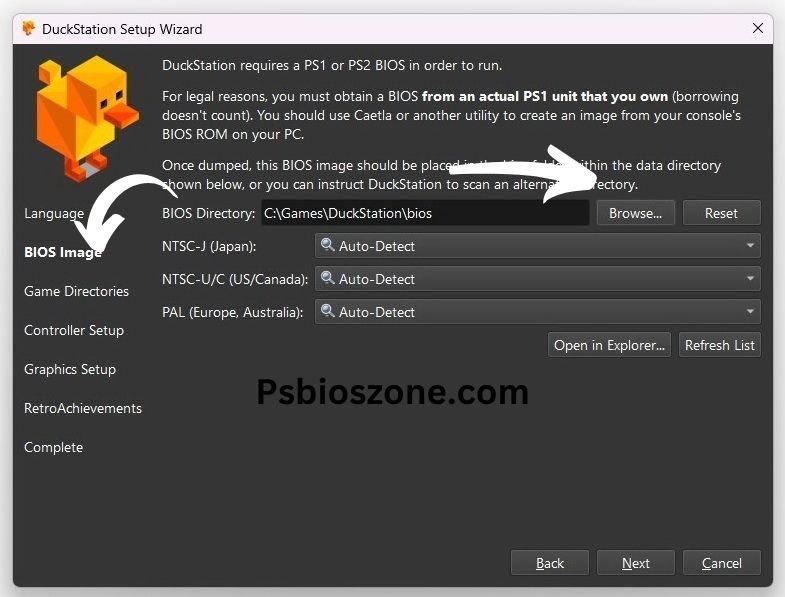
1. Install DuckStation for PC Visit the official DuckStation website and download the latest version for Windows, Linux, or macOS. 2. Download the BIOS Pack Get the All-In-One PS1 BIOS Pack from our download section and save it to a folder on your computer. 3. Set the BIOS Directory Open DuckStation and go to Settings. Under the BIOS Settings section, locate and select the folder where your BIOS files are stored.
Adding PS1 BIOS on DuckStation for PC Go to: Settings > BIOS Settings > Set BIOS Directory
4. Load the BIOS Automatically Once the path is set, DuckStation will automatically detect the BIOS files in that folder—no further input needed. 5. Play Your Favorite PS1 Games From the main menu, go to File > Open Disc Image, choose your game file (ISO or BIN), and start playing immediately.
Frequently Asked Questions (FAQs)
Where can I safely download the PS1 BIOS?
You can safely download frompsbioszone.com — all files are secure and malware-free.
Is it legal to download PS1 BIOS?
Legality depends on your location. To stay compliant, it’s recommended to dump the BIOS from your own console.
Which BIOS file should I use?
Use SCPH1001.BIN for US games, SCPH7502.BIN for PAL, and SCPH5500.BIN for Japan. SCPH7003.BIN works for multiple regions.
Why is my emulator showing a “No BIOS Found” error?
Make sure the BIOS file is correctly placed in the designated directory and selected in emulator settings.
Final Thoughts
Setting up your PS1 emulator with a proper BIOS is the key to unlocking a smooth, accurate, and enjoyable gaming experience. With a wide variety of supported emulators and detailed guides,psbioszone.com makes it easy for you to get started—safely and legally.
Whether you’re on Android, iOS, or PC, reliving your favorite PlayStation 1 titles is just a BIOS file away.